
Converting product identifiers, inventory tags, or shipping labels into machine‑readable symbols is a routine need for many Python applications. Aspose.BarCode for Python via .NET provides a robust SDK that lets you generate Code 39 barcodes with just a few lines of code. In this guide you will learn how to install the library, create and customize a Code 39 barcode, and apply performance best practices, all backed by a complete working example.
Steps to Build Code 39 Barcode in Python
- Install the SDK: Run
pip install aspose-barcode-for-python-via-netto add the library to your environment.- The API reference shows the
BarCodeGeneratorclass you will use.
- The API reference shows the
- Create a generator instance: Initialize
BarCodeGeneratorand set theEncodeTypetoCode39Standard. This tells the SDK to use the Code 39 symbology.- Example:
generator = barcode.BarCodeGenerator()andgenerator.encode_type = barcode.EncodeTypes.CODE39.
- Example:
- Assign the barcode text: Provide the data you want to encode, e.g.,
"ABC123".- The generator validates the text against Code 39 rules, rejecting unsupported characters.
- Configure appearance (optional): Adjust properties such as
bar_height,bar_color, andback_colorto match your UI requirements.- These settings are documented in the official documentation.
- Save the image: Call
savewith the desired file name and format (PNG,JPG, etc.). The SDK writes the barcode to disk ready for use.
Creating Code 39 Barcodes in Python - Complete Code Example
The following snippet demonstrates a full end‑to‑end implementation, from installation to saving a PNG file.
# Complete working example to generate a Code 39 barcode in Python
from aspose.barcode import generation
from aspose.pydrawing import Color

def generate_code39(text: str, output_path: str):
    # Initialize the barcode generator
    generator = generation.BarcodeGenerator(
        generation.EncodeTypes.CODE39,
        text
    )

    # Assign the text to encode (must be uppercase letters, digits, or - . $ / + % SPACE)
    generator.code_text = text.upper()

    # Optional appearance settings
    # Fore color / bar color
    generator.parameters.barcode.bar_color = Color.blue  # Blue

    # Back color / image background color
    generator.parameters.back_color = Color.red  # Light yellow

    # Bar height
    generator.parameters.barcode.bar_height.pixels = 80.0

    # Save the barcode as PNG
    generator.save(output_path, generation.BarCodeImageFormat.PNG)

if __name__ == "__main__":
    # Example usage
    generate_code39("ABC123", "output/code39_barcode.png")
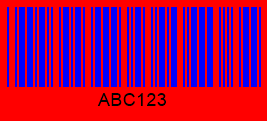
Note: This code example demonstrates the core functionality. Before using it in your project, make sure to update the file paths (
code39_barcode.png, etc.) to match your actual file locations, verify that all required dependencies are properly installed, and test thoroughly in your development environment. If you encounter any issues, please refer to the official documentation or reach out to the support team for assistance.
Installation and Setup in Python
# Install the Aspose.BarCode SDK for Python via .NET
pip install aspose-barcode-for-python-via-net
After installation, import the library in your script as shown in the complete example. For Windows users, ensure that the required .NET runtime is present; the SDK documentation provides detailed prerequisites.
Generate Code 39 Barcode in Python with Aspose.BarCode
This section gives a high‑level overview of how the SDK handles Code 39 generation. The library abstracts the low‑level encoding algorithm, letting you focus on business logic. It supports both standard and extended Code 39, automatic checksum calculation, and seamless integration with other Aspose products such as Aspose.PDF for .NET if you need to embed the barcode into PDF documents.
Aspose.BarCode Features That Matter for This Task
- Multiple symbologies: Besides Code 39, the SDK supports QR, DataMatrix, UPC, and many more.
- High‑resolution output: Generate vector (SVG) or raster (PNG, JPEG) images at any DPI.
- Cross‑platform: Works on Windows, Linux, and macOS via .NET Core.
- Licensing support: Apply a temporary license during development using the link provided in the license page.
Customizing Barcode Appearance and Encoding Options
You can tailor the barcode to match branding guidelines:
- Colors: Set
bar_colorandback_colorto any RGB value. - Size: Adjust
bar_heightfor different resolutions. - Extended mode: Switch to
EncodeTypes.CODE_39_FULL_ASCIIto encode the full ASCII set.
All these properties are documented in the API reference.
Performance Considerations and Optimization
When generating large batches of barcodes:
- Reuse the generator: Create a single
BarCodeGeneratorobject and only modifycode_textfor each new barcode. - Avoid excessive image formats: PNG is fast and lossless; use JPEG only when file size is critical.
- Parallel processing: The SDK is thread‑safe, so you can generate barcodes in parallel threads or async tasks for better throughput.
Best Practices for Code 39 Barcode Generation
- Validate input: Ensure the text conforms to Code 39 character set before calling the generator.
- Use uppercase: Code 39 is case‑insensitive but the SDK expects uppercase characters for standard mode.
- Set explicit DPI: When saving to raster formats, specify the resolution to guarantee consistent print quality.
- License early: Apply your permanent license in production to avoid evaluation watermarks.
Conclusion
Generating Code 39 barcodes in Python is straightforward with Aspose.BarCode for Python via .NET. By following the steps, customizing appearance, and applying the performance tips outlined above, you can integrate reliable barcode creation into any application. Remember to obtain a proper license for production use; pricing details are available on the pricing page and a temporary license can be requested from the license page. Happy coding!
FAQs
Q: How do I implement generate Code 39 Barcode in Python?
A: Install the SDK, create a BarCodeGenerator, set EncodeTypes.CODE39, assign your text, and call save. The full code example in this article demonstrates the process.
Q: What if I need to encode characters not allowed in standard Code 39?
A: Switch to EncodeTypes.CODE_39_FULL_ASCII, which supports the full ASCII range, or preprocess your data to fit the standard set.
Q: Can I embed the generated barcode directly into a PDF?
A: Yes. After saving the barcode as an image, you can use Aspose.PDF for .NET to insert it into a PDF document programmatically.
Q: How can I generate multiple barcodes efficiently?
A: Reuse a single BarCodeGenerator instance, update the code_text for each item, and optionally run the generation in parallel threads to improve throughput.