Previously, I wrote a post on Excel automation with C#. In this guide, you’ll learn how to create Excel workbooks, add data, calculate formulas, and generate charts and tables using C++. All features are powered by the native C++ API – Aspose.Cells for C++.
Aspose.Cells for C++ is a native library that lets you create, read, parse, and convert spreadsheet documents without Microsoft Excel. It offers a full set of Excel automation tools for generating and manipulating XLS/XLSX files. This article covers:
- Create Excel files (XLS/XLSX) using C++
- Add data to an Excel worksheet using C++
- Calculate workbook formulas using C++
- Create tables in an Excel worksheet using C++
- Create charts in Excel XLS/XLSX using C++
C++ Excel Spreadsheet API - Installation
Download the full Aspose.Cells for C++ package from the Downloads page. The package includes a ready‑to‑run sample console application.
Create Excel Files (XLS/XLSX) using C++
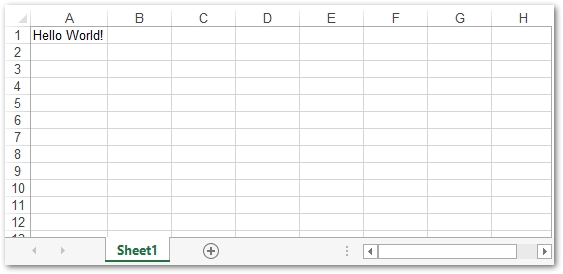
First, create a simple Excel XLSX workbook. A workbook contains one or more worksheets, and each worksheet holds rows and columns of data. Follow these steps:
- Instantiate a Workbook object.
- Retrieve the default worksheet as a Worksheet from the WorksheetCollection.
- Get the worksheet’s cells via Worksheet.GetCells() into a Cells object.
- Access a specific cell with Cells.Get() using row and column indexes.
- Set the cell value with Cell.PutValue().
- Save the workbook as an .xlsx file using Workbook.Save().
Excel Workbook
Add Data to an Excel Worksheet using C++
Instead of numeric indexes, Excel cells are often referenced by column letters and row numbers (e.g., A1, B2). The following example shows how to insert data using cell names. The workbook creation steps remain the same.
Calculate Workbook Formulas using C++
Formulas enable powerful calculations in Excel. Follow these steps to add and evaluate formulas:
- Create a Workbook object.
- Get a Worksheet from the WorksheetCollection.
- Use the Cell class to select the target cell.
- Set the formula with Cell.SetFormula().
- Calculate all formulas via Workbook.CalculateFormula().
- Save the workbook with Workbook.Save().
Create Tables in an Excel Worksheet using C++
Tables organize data ranges and support list features. To create a table:
- Instantiate a new Workbook.
- Access the default or a new Worksheet.
- Fill cells with data as shown earlier.
- Add the cell range to the worksheet’s Lists collection using Worksheet.GetListObjects().Add().
- Retrieve the list as a ListObject.
- Apply a style with ListObject.SetTableStyleType().
- Save the workbook as .xlsx.
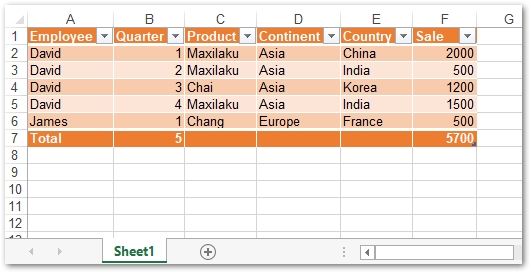
Excel Workbook with Table
Create Charts in Excel Spreadsheet using C++
Charts visualize data quickly. Aspose.Cells for C++ supports many chart types, including Sunburst, Treemap, Histogram, Pyramid, Bubble, Line, and many more. To add a chart:
- Create a new [Workbook].
- Access the target Worksheet.
- Add a chart with Worksheet.GetCharts().Add(), specifying the chart type.
- Retrieve the chart as a Chart object.
- Define the data source using Chart.GetNSeries().Add().
- Save the workbook as .xlsx.
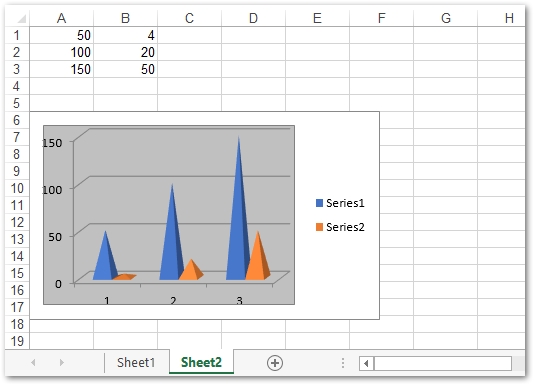
Excel Workbook with Chart
Conclusion
This article demonstrated how to create Excel spreadsheets from scratch using C++. You learned to add data, calculate formulas, and generate tables and charts programmatically. Explore more advanced Excel automation features in the documentation of Aspose.Cells for C++.