
In many development scenarios you must transform HTML pages into PDF documents, or generate PDFs directly from a WYSIWYG HTML editor. This article explains how to convert HTML to PDF in Android apps programmatically using Aspose.PDF for Android via Java, and also covers password protection, URL‑based conversion, and additional customization features.
- Android HTML to PDF Converter Library
- Convert HTML to PDF
- Convert HTML to Password-protected PDF
- HTML to PDF Conversion using URL
- Get a Free Licence
Android HTML to PDF Converter Library
To perform HTML‑to‑PDF conversion on Android we use the Aspose.PDF for Android via Java library. It offers a comprehensive API for creating, editing, and converting PDF files directly within your Android application. You can obtain the library by downloading it or adding it to your project with Maven/Gradle.
maven {
    url "http://repository.aspose.com/repo/" }
compile (
        group: 'com.aspose',
        name: 'aspose-pdf',
        version: '20.11',
        classifier: 'android.via.java')
Convert HTML to PDF in Android Programmatically
Follow these steps to convert a local HTML file into a PDF document:
- Instantiate an HtmlLoadOptions object to define loading preferences.
- Create a Document object, passing the HTML file path and the HtmlLoadOptions instance.
- Call Document.save(String) to write the PDF file to storage.
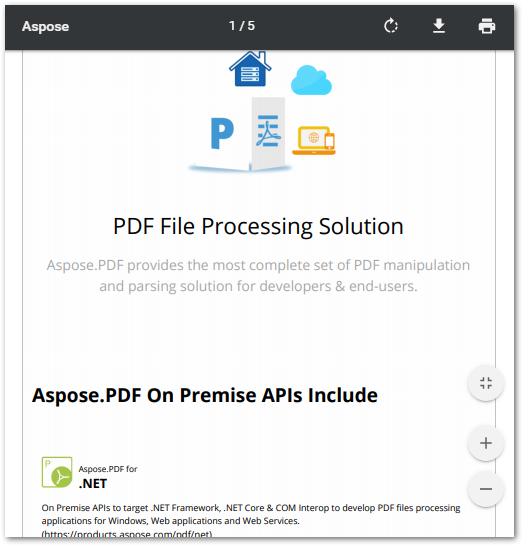
The code snippet below demonstrates the complete process.
HTML File
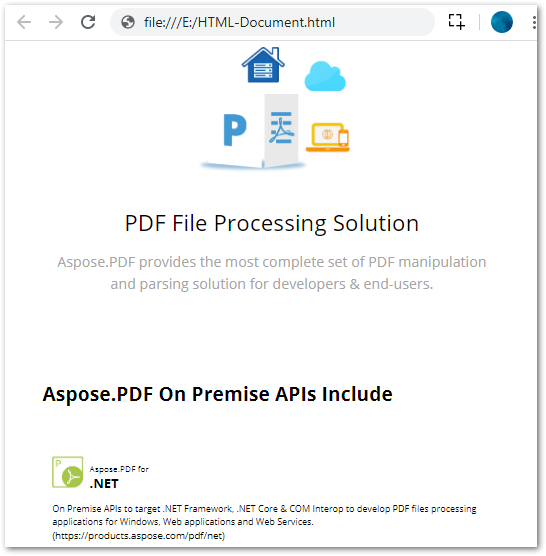
HTML to PDF Result
Convert HTML to Password-protected PDF
You can secure the generated PDF with a password using just a few additional lines of code:
- Create an HtmlLoadOptions instance.
- Initialize a Document with the HTML source and the load options.
- Apply Document.encrypt(String userPassword, String ownerPassword, Permissions, CryptoAlgorithm) to set encryption.
- Save the encrypted PDF with Document.save(String).
The example below shows how to produce a password‑protected PDF from HTML.
HTML to PDF Conversion using URL
To convert a live web page into a PDF, use the following workflow:
- Build a URL object pointing to the target web page.
- Open an InputStream from the URL to read the page content.
- Create a Document using the InputStream together with HtmlLoadOptions.
- Save the document as PDF via Document.save(String).
The code sample illustrates how to download a web page and convert it to PDF on Android.
Get a Free License
You can get a free license to remove evaluation restrictions and unlock the full capabilities of the Android HTML to PDF converter library.
Conclusion
This guide has shown you how to convert HTML files, web pages, and editor content into PDF documents on Android, including options for password protection and URL‑based conversion. Explore the full feature set in the official documentation, and reach out via our forum if you have any questions.