A chart’s plot area contains the space where its data is displayed. Formatting this area can help a chart fit the appearance of a Word report and make its data easier to distinguish. The plot area is part of the larger chart area, which can also include elements such as the title and legend.
In this tutorial, you will create a column chart in a Word document, apply a gradient fill and a border to its plot area, and save the result using Python.
Python Library to Format a Word Chart Plot Area
Aspose.Words for Python via .NET lets you create and manipulate Word documents from Python applications. Use version 26.10 or later for plot-area fill and line formatting.
Install the library with pip:
pip install "aspose-words>=26.10"
You can use the library in evaluation mode or obtain a free temporary license to evaluate it without evaluation limitations.
Format the Plot Area of a Word Chart in Python
Follow these steps to create and format a chart:
- Create a
Documentand aDocumentBuilder. - Insert a column chart and access it through the returned shape.
- Clear the default series and add your own categories and values.
- Access the plot area’s
formatproperty. - Apply a gradient fill and set the border color and width.
- Save the document as a DOCX file.
The following example creates a chart with two series and formats its plot area:
import aspose.pydrawing
import aspose.words as aw

# Create a document and insert a column chart.
doc = aw.Document()
builder = aw.DocumentBuilder(doc=doc)
shape = builder.insert_chart(
    chart_type=aw.drawing.charts.ChartType.COLUMN,
    width=432,
    height=252,
)
chart = shape.chart

# Replace the default series with sample data.
chart.series.clear()
categories = ["Quarter 1", "Quarter 2"]
chart.series.add(series_name="2025", categories=categories, values=[1, 2])
chart.series.add(series_name="2026", categories=categories, values=[3, 4])

# Set the plot-area fill and border.
plot_area = chart.plot_area
plot_area.format.fill.one_color_gradient(
    color=aspose.pydrawing.Color.light_blue,
    style=aw.drawing.GradientStyle.DIAGONAL_UP,
    variant=aw.drawing.GradientVariant.VARIANT2,
    degree=1,
)
plot_area.format.stroke.fore_color = aspose.pydrawing.Color.blue
plot_area.format.stroke.weight = 0.25

# Save the document.
doc.save(file_name="formatted-chart-python.docx")
How the Plot Area Formatting Works
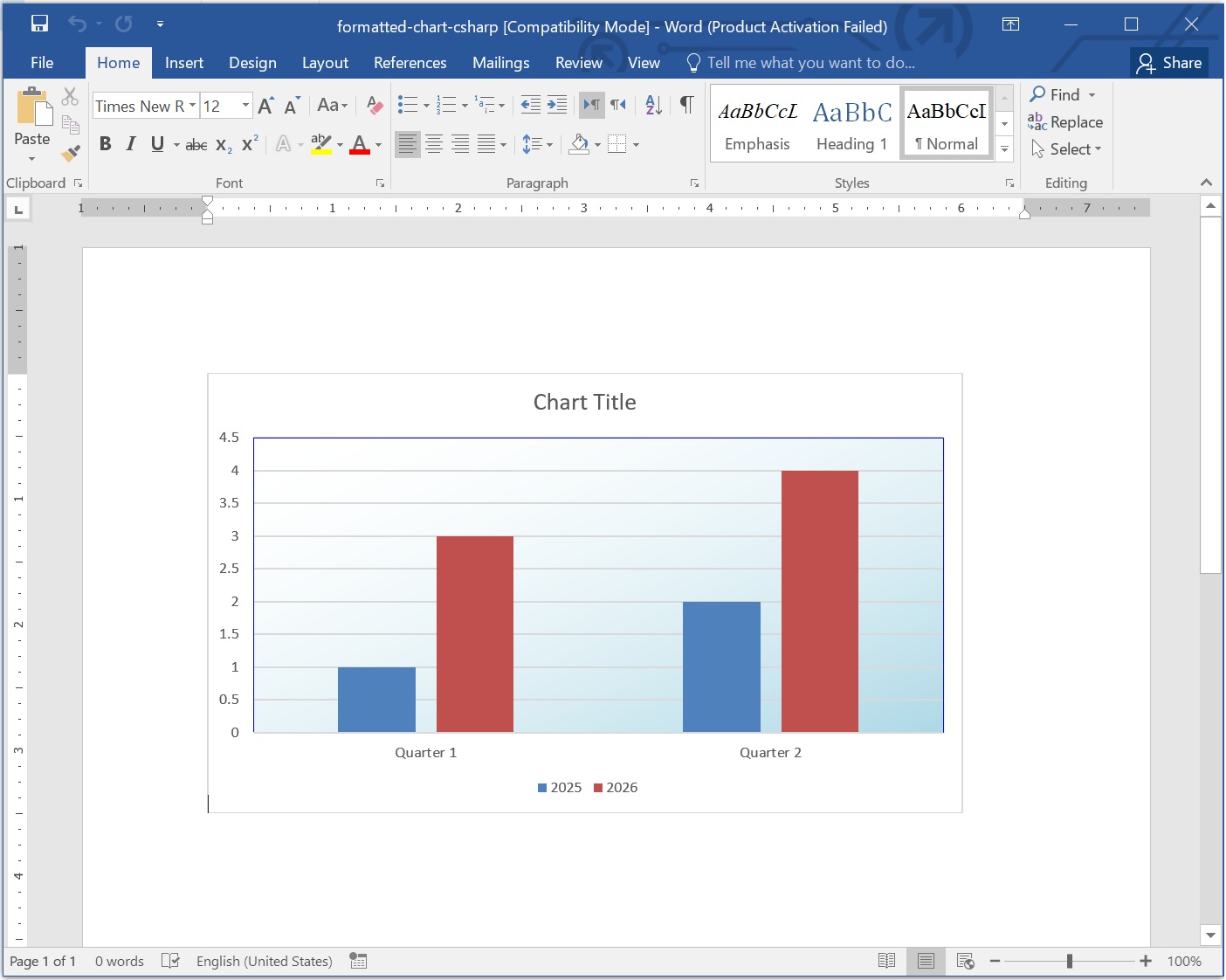
The example clears the chart’s generated series before adding its own, so the output contains only the sample data. The categories appear along the chart’s category axis, and each series supplies a value for each category.
The chart.plot_area.format property provides access to the plot-area fill and line formatting. The one_color_gradient() method sets the gradient color, style, variant, and degree. The stroke.fore_color and stroke.weight properties set the border color and width; the example uses a width of 0.25 points.
View the Formatted Chart
Open formatted-chart-python.docx in a Word document viewer. The document contains a column chart with two data series, a light-blue gradient in the plot area, and a thin blue border. You can change the colors, gradient settings, categories, and values to suit your report.
Format the Plot Area of a Word Chart.
Conclusion
You have created a Word column chart and formatted its plot area with a gradient and border using Python. Adapt the sample data and colors for your own reports, or explore the Python chart tutorial to learn how to create other chart types.