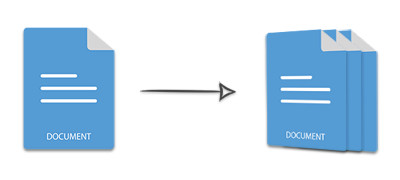
In certain cases, you need to split large Word documents into smaller ones. You can split a Word document by pages, sections, or columns. In this article, you will learn how to split a Word document into multiple files using Python. The step‑by‑step guide and code samples demonstrate how to split a Word document by sections, pages, or page ranges programmatically.
- Python Library to Split MS Word Documents
- Split a Word Document by Sections
- Splitting a Word Document by Pages
- Split a Word Document by a Page Range
Python Library to Split MS Word Documents
To split a DOCX or DOC document into multiple files, we will use Aspose.Words for Python. It is a word‑processing library that creates and manipulates Word documents. Install it from PyPI with the following command.
pip install aspose-words
Split a Word Document by Sections in Python
Most Word files are divided into sections using section breaks. To save each section as a separate file, follow these steps:
- Load the document with the Document class.
- Loop through each section in Document.sections.
- For each section:
- Create a new Document object.
- Clear its default sections using Document.sections.clear().
- Import the current section with Document.import_node(Section, True).as_section() and store the returned Section.
- Add the imported Section to the new document’s sections collection.
- Save the new document as a DOCX file using Document.save(string).
The code sample below shows how to split a Word document by sections in Python.
Splitting a Word Document by Pages in Python
To split each page of a document and save it as an individual DOCX file, use these steps:
- Load the document with the Document class.
- Retrieve the total page count via Document.page_count.
- Loop from the first to the last page and for each iteration:
- Extract the page using Document.extract_pages(pageIndex, 1).
- Save the extracted page as a DOCX file with Document.save(string).
The following code sample demonstrates page‑by‑page splitting.
Split a Word Document by a Page Range in Python
You can also extract a specific range of pages and save it as a separate file. Follow these steps:
- Load the document with the Document class.
- Call Document.extract_pages(startIndex, pageCount) where startIndex is the first page number and pageCount is the number of pages to extract.
- Save the extracted range as a DOCX file using Document.save(string).
The code sample below shows how to extract a page range and save it.
Get a Free API License
Are you interested in trying Aspose.Words for Python for free? Get a temporary license to avoid evaluation limitations.
Conclusion
In this article, you learned how to split a Word document into multiple files using Python. The examples cover splitting by sections, pages, and page ranges. Explore additional features in the documentation and ask questions in our forum.